
Account Registration
Requirements before registering
The person creating the official account for your establishment must have signing authority or a power of attorney
- Required Elements to Start:
- Year of creation of your establishment
- Address of the registered office
- Your ID card (or recto-verso PDF copy)
- The IBAN of your establishment (operational IBAN)
- The coordinated statutes of the establishment (if applicable)
- The ultimate beneficial owner(s) (UBO) + information if they are PEP (Politically Exposed Person)
Digiteal SA is approved and regulated as a payment institution by the National Bank of Belgium. Risks related to money laundering and terrorist financing are targeted. We therefore need certain pieces of information to assess these risks.
Example statement for obtaining Power of Attorney
Mrs, Mr,
I hereby sign, (LAST NAME, FIRST NAME), (JOB TITLE), and authorize my colleague Mr/Mrs (LAST NAME, FIRST NAME), (JOB TITLE), to act on my behalf to open an official account for the company (COMPANY NAME) at Digiteal SA (payment institution) on www.digiteal.eu
Signed on (DATE) in (LOCATION)
Registration process on the platform
Navigate to https://web-app.digiteal.eu/public/loginFor testing: https://web-test.digiteal.eu/public/login
Internet Explorer is not supported as it does not meet security standards
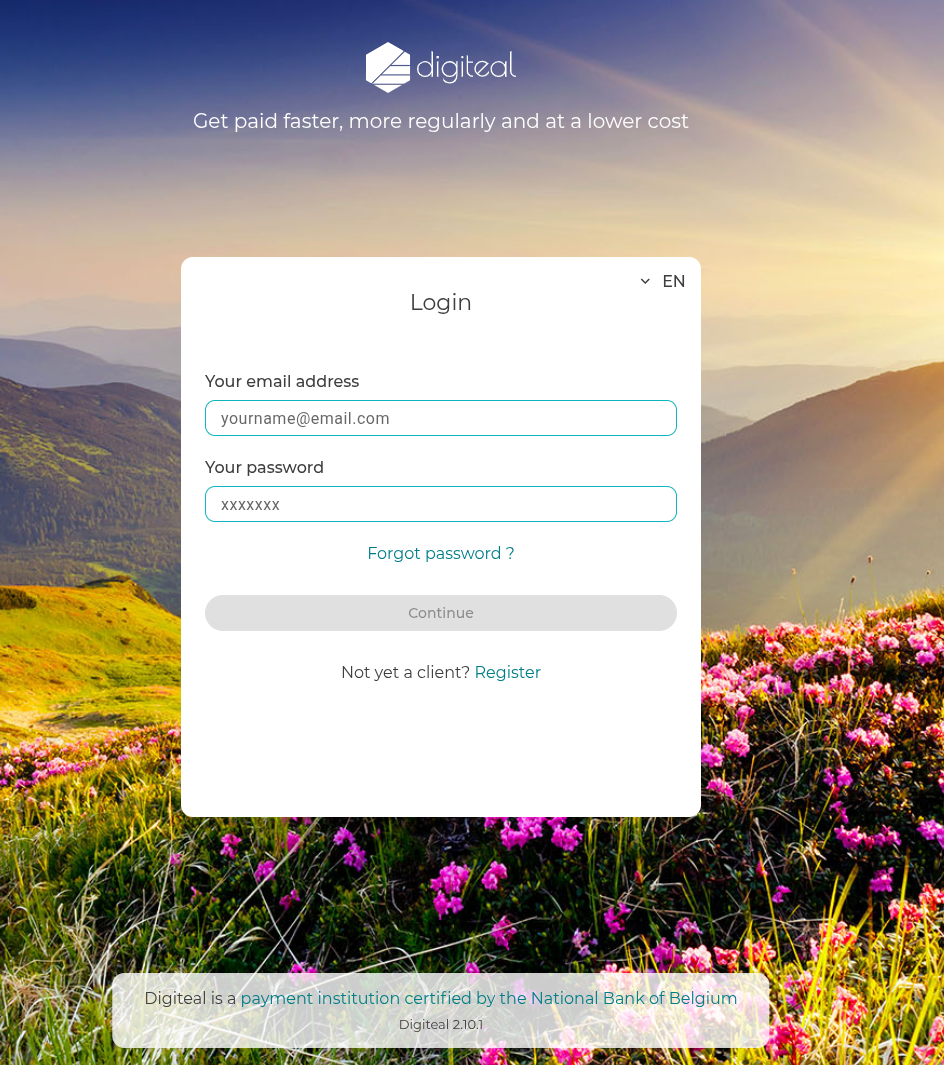
- Click on "Register"
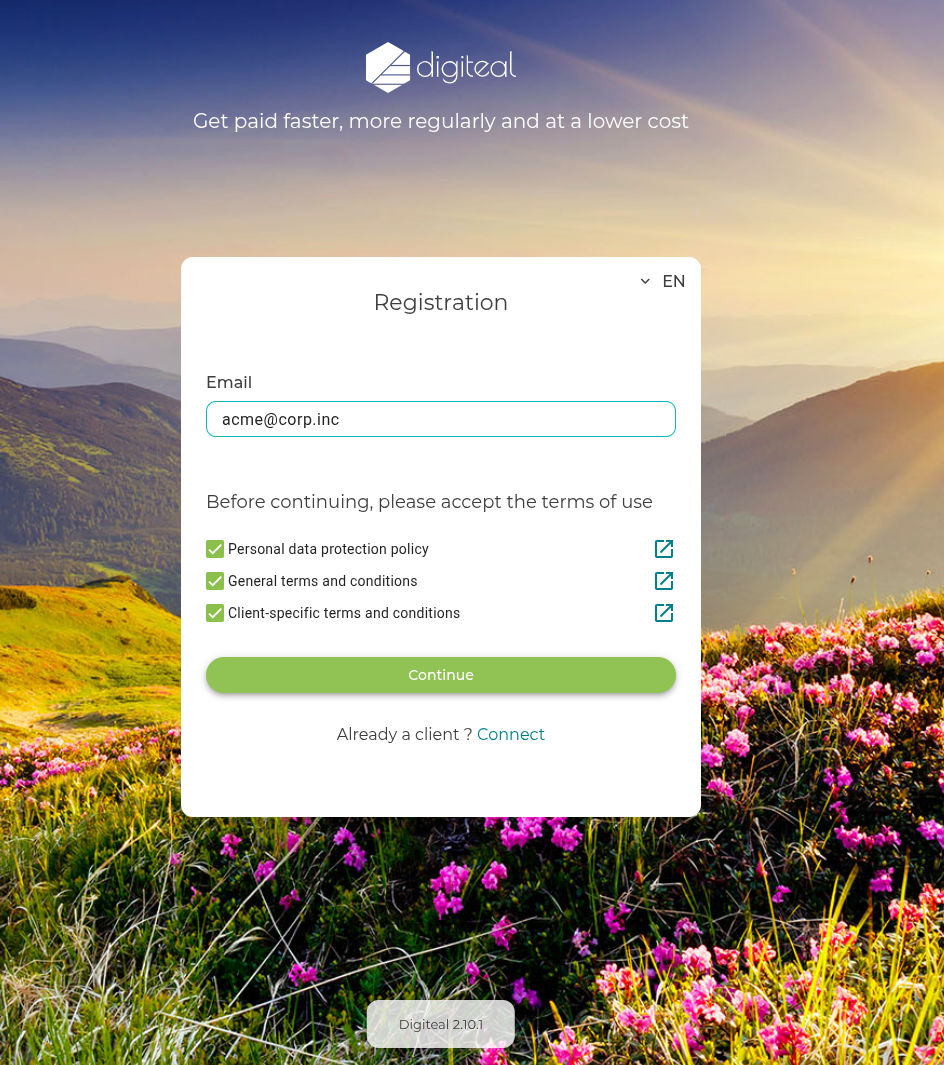
- Enter the email address you wish to use to access your Digiteal account.
- Accept the terms of use and click "Continue".
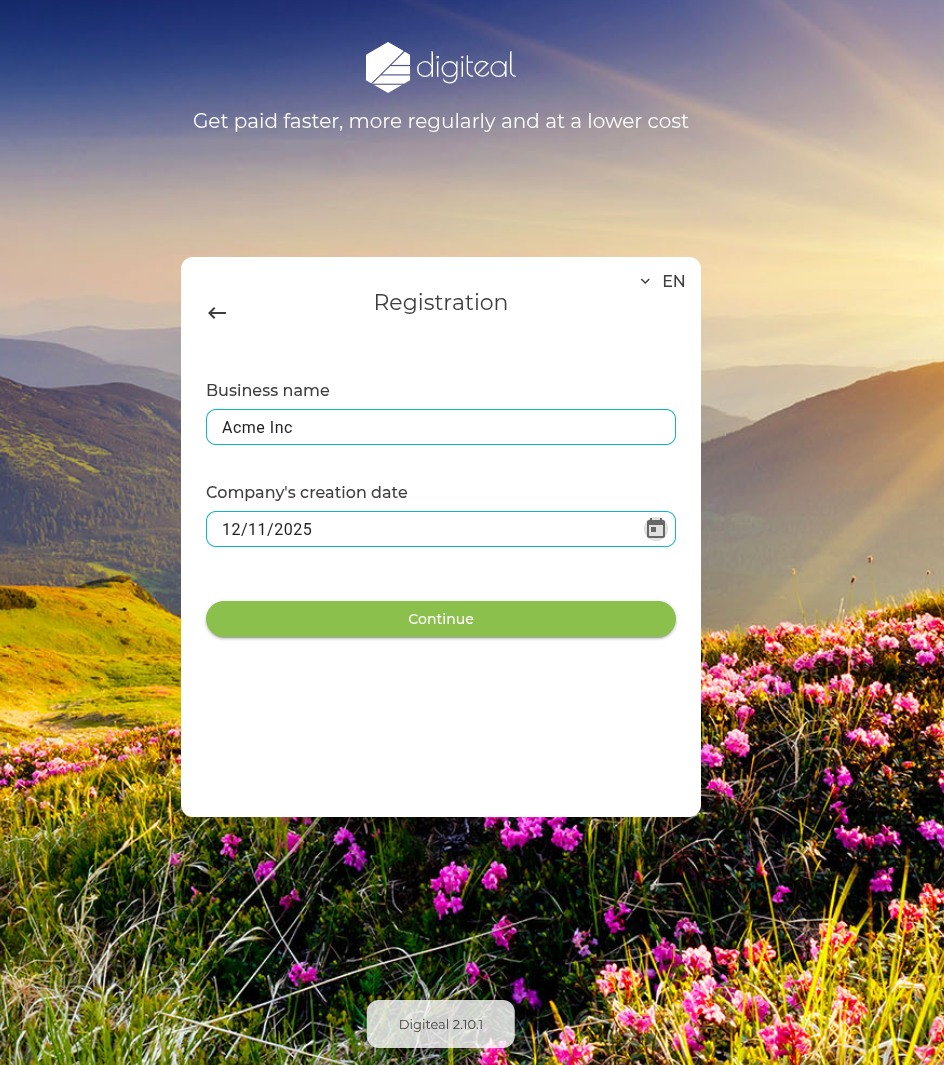
- Enter the name of your company and its creation date.
- Click "Continue".
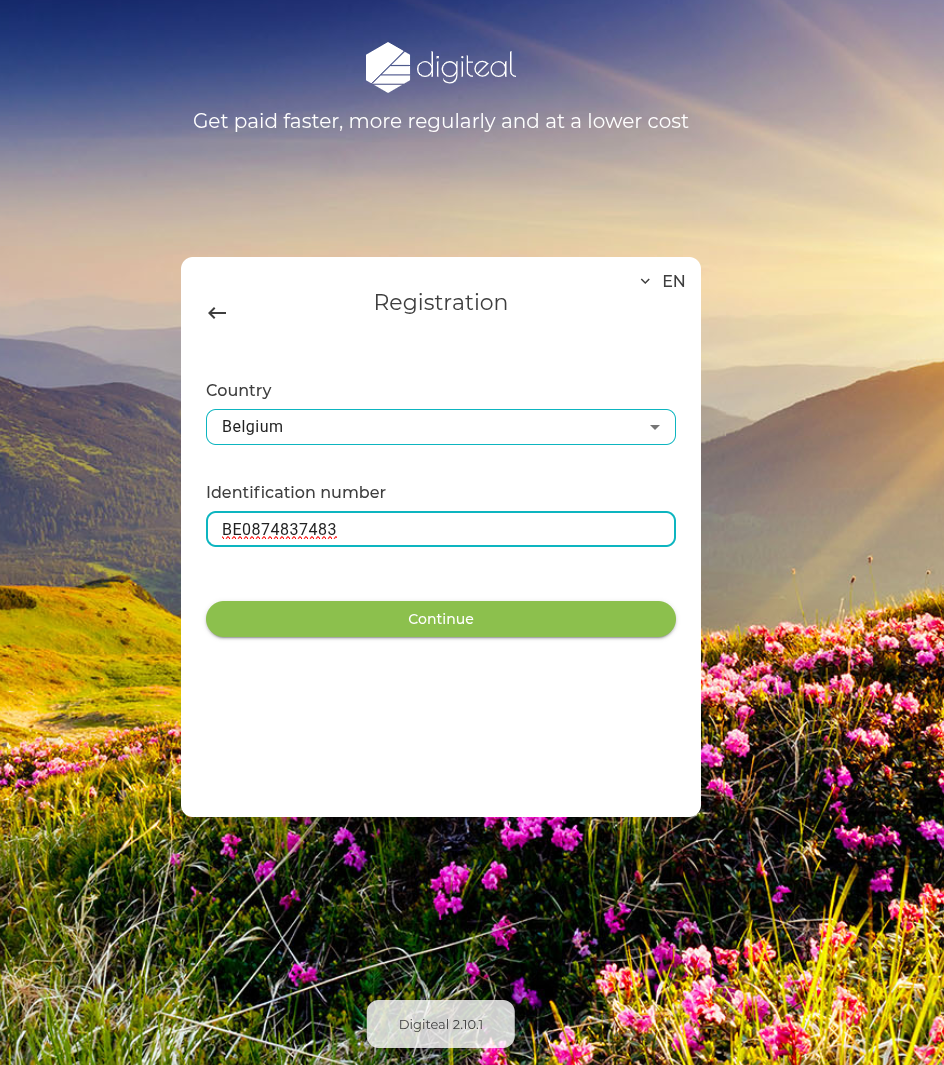
- Enter the country where your company is located and its identification number.
- Click "Continue"
- Note: If the entity does not have a VAT number, you can use the company number preceded by "BE", "FR", an establishment unit number preceded by "EURN" or a "FR:SIREN", etc.).
We have a list of supported company identifiers for multiple countries detailed here
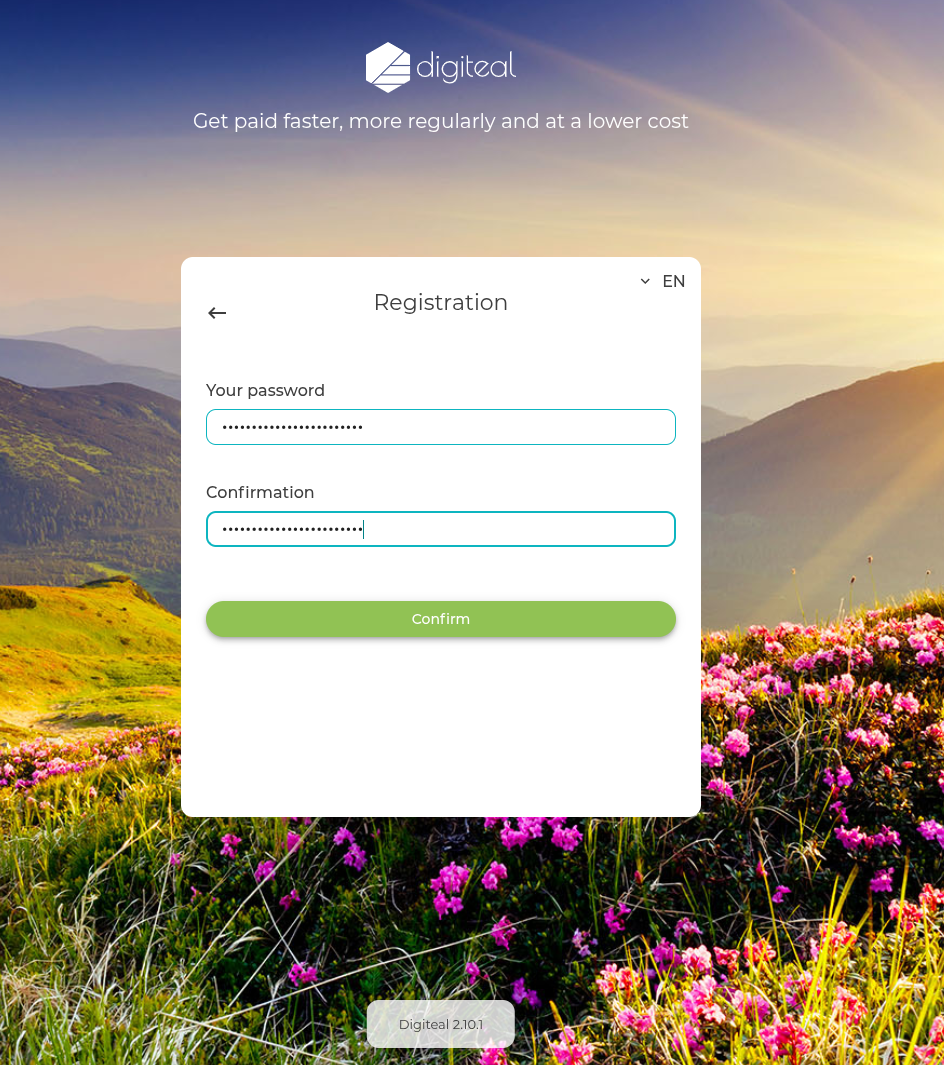
- Choose a strong password.
- Click "Confirm".
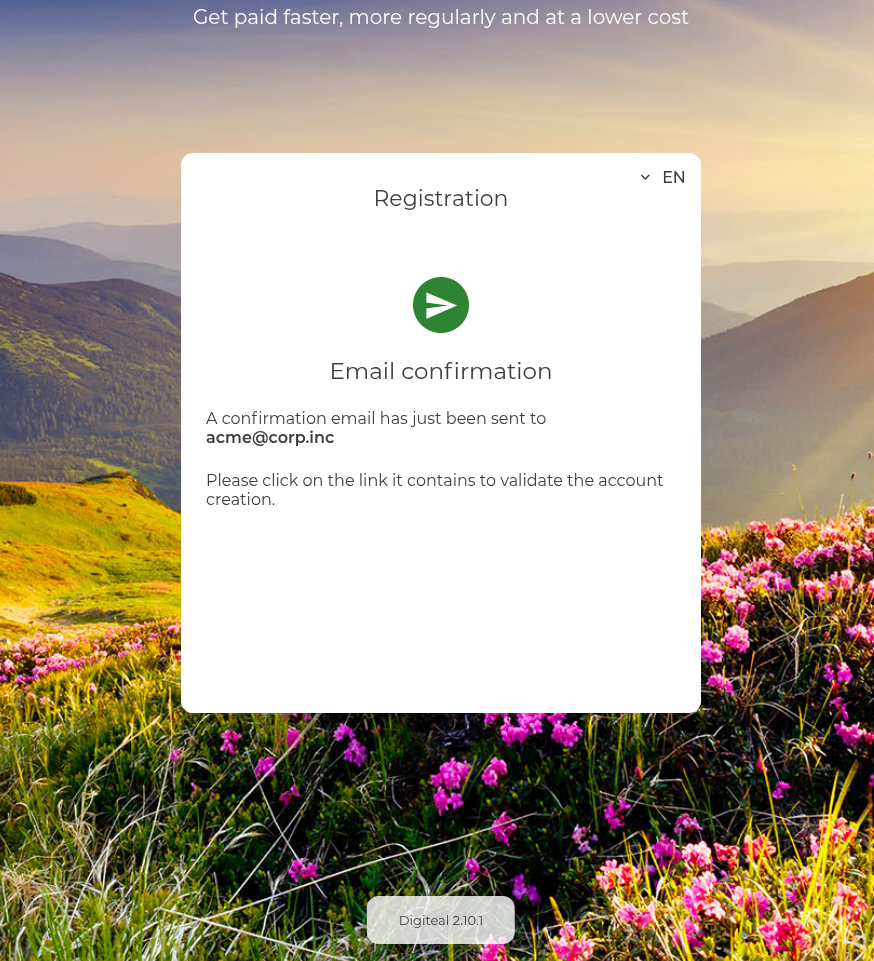
- Check your inbox to follow the next steps!
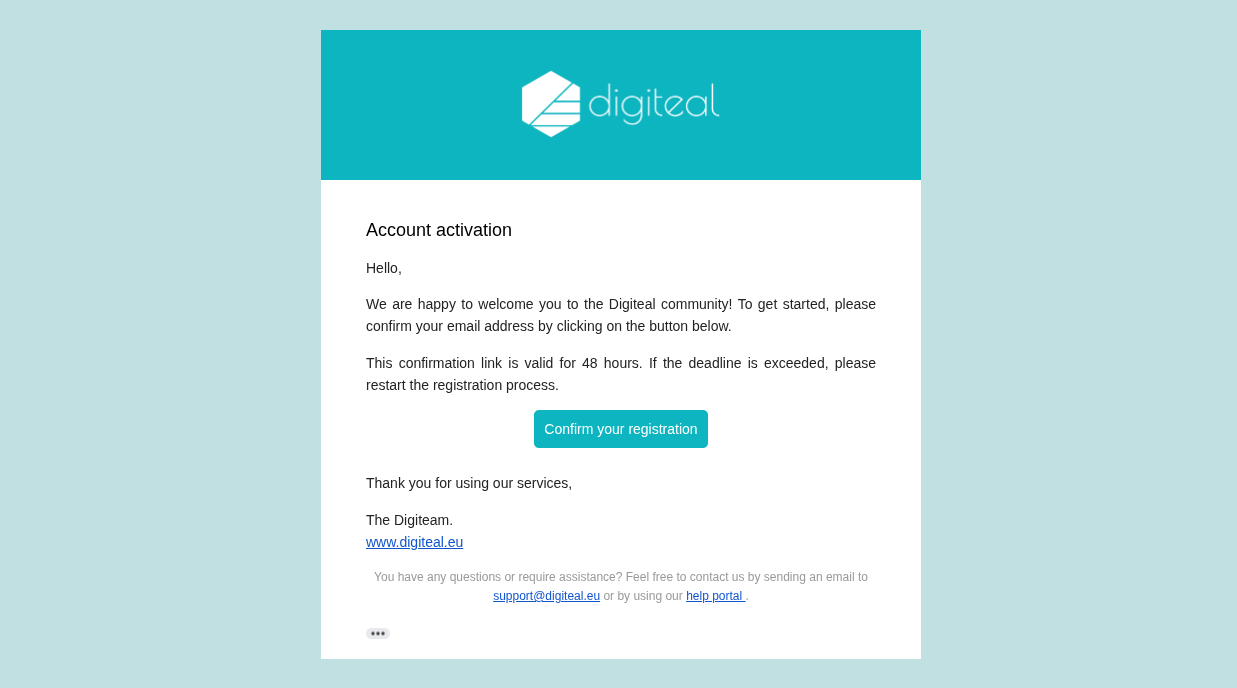
- Open the email "Welcome to Digiteal !" and click on "Confirm your registration".
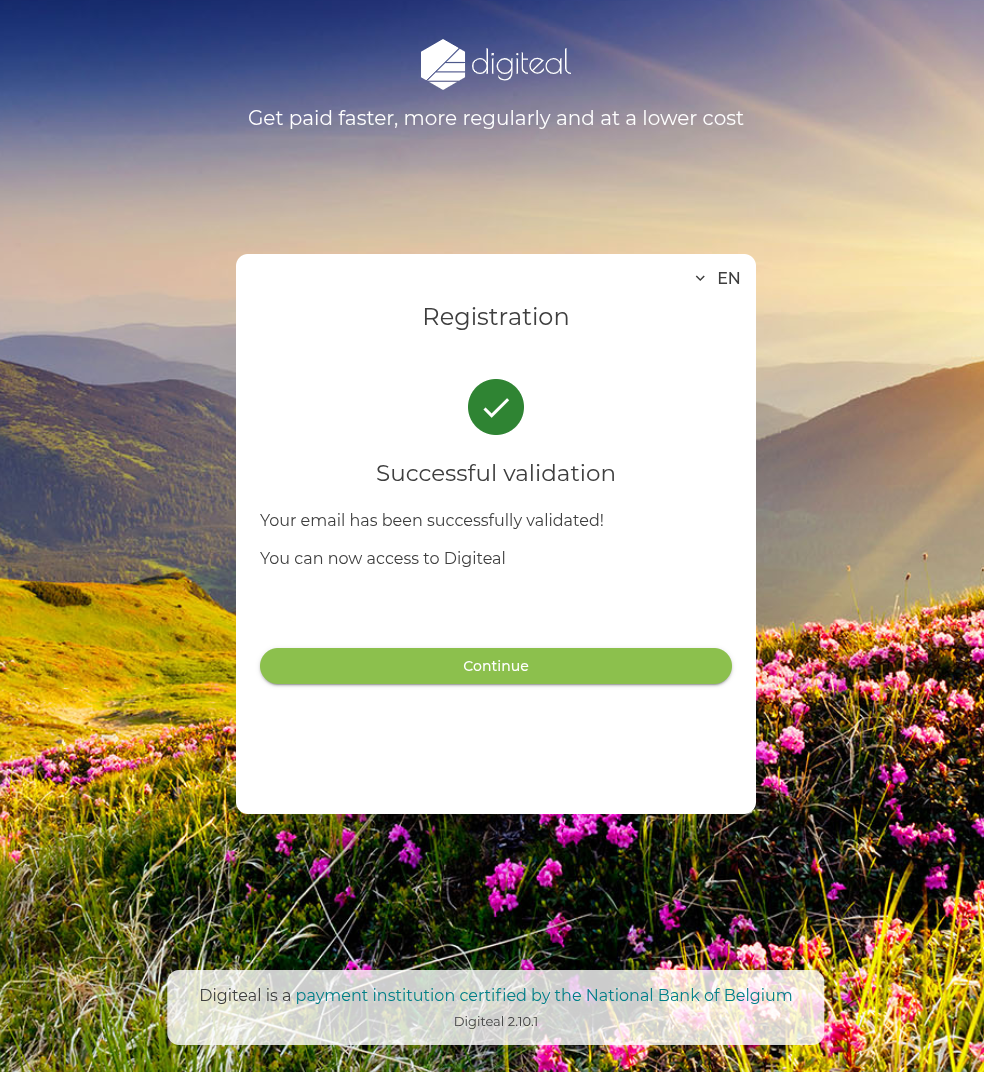
- After confirming your registration, a "Successful validation" message appears.
- Click "Continue".
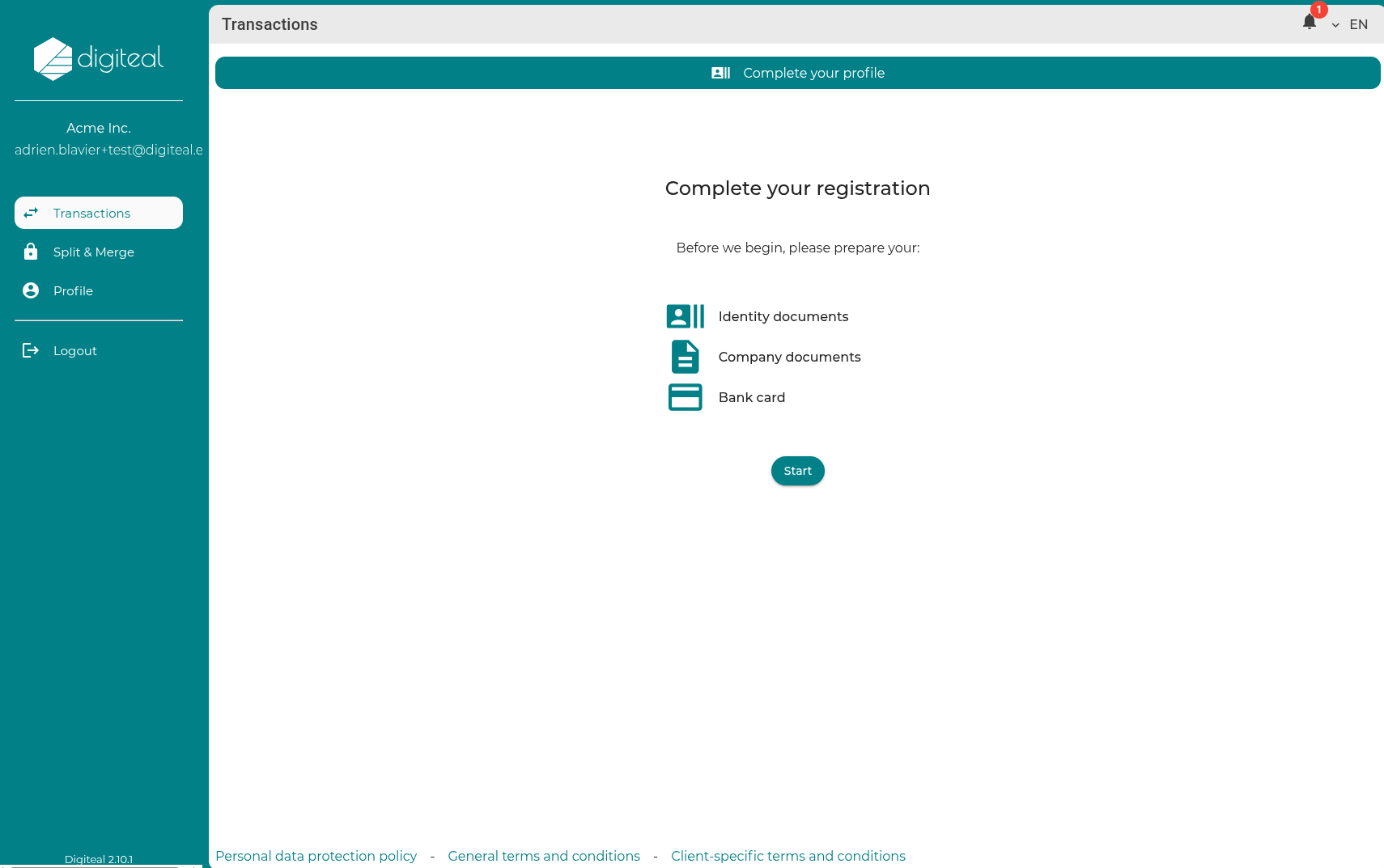
- Once connected to the Digiteal Web application, you will see a message inviting you to complete your registration.
- Click "Start".
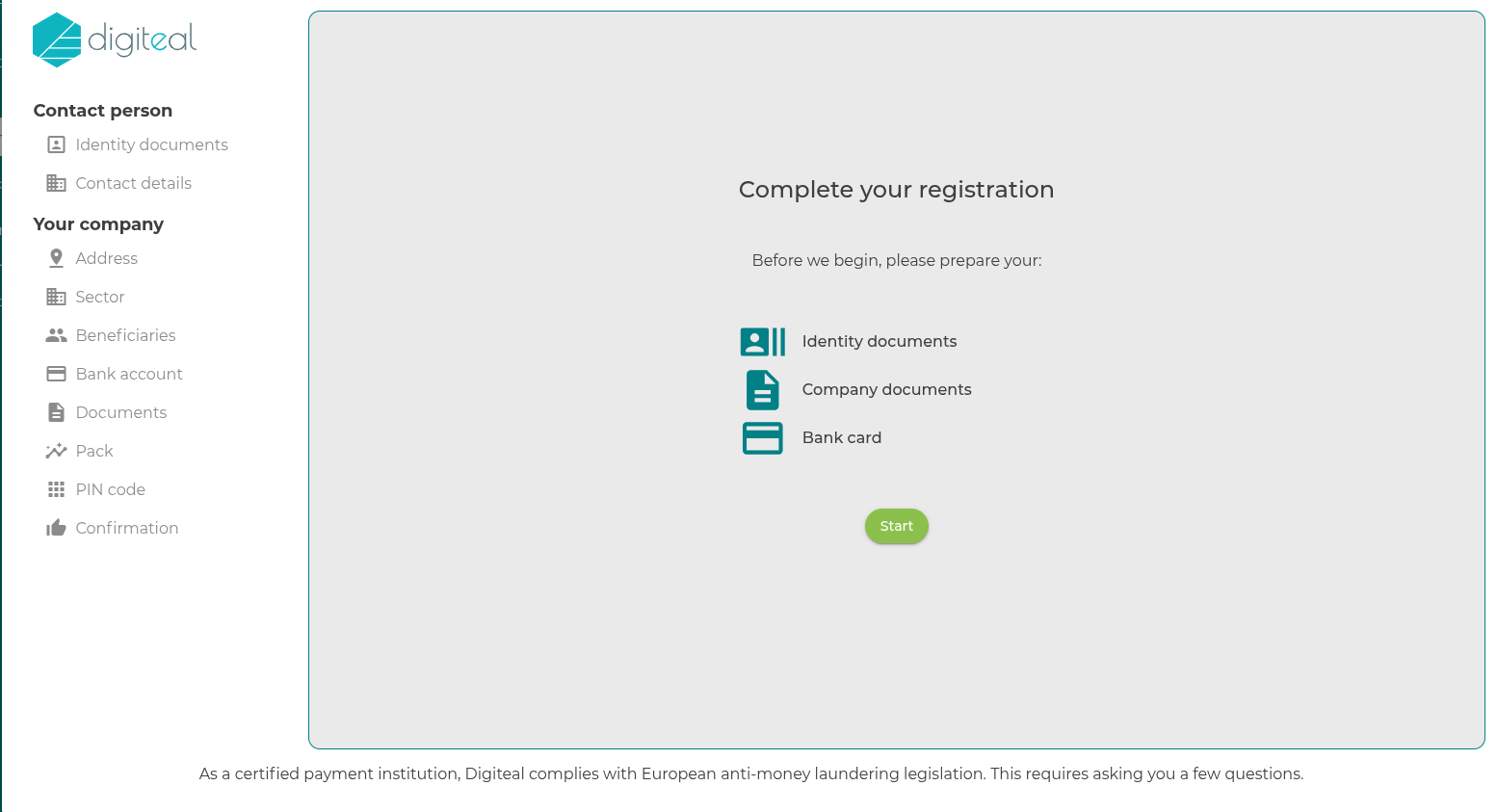
- This will open the wizard and you are invited to complete your profile.
- Click "Start".
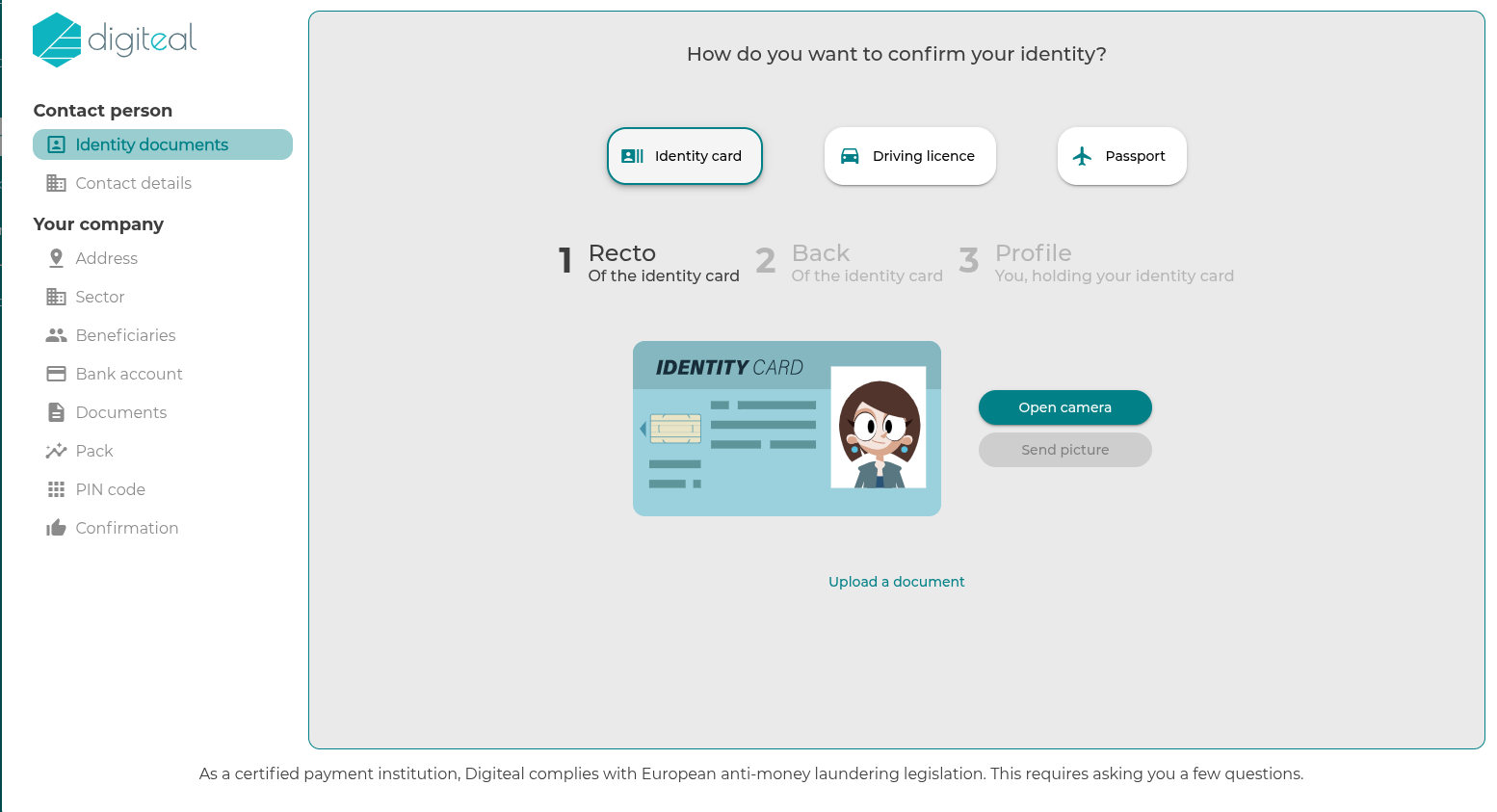
- Identify yourself by taking photos using your webcam or by uploading them. There are 3 photos to take:
- The front of your ID card.
- The back of your ID card.
- A photo of you holding your ID card (your face AND your ID card must be visible).
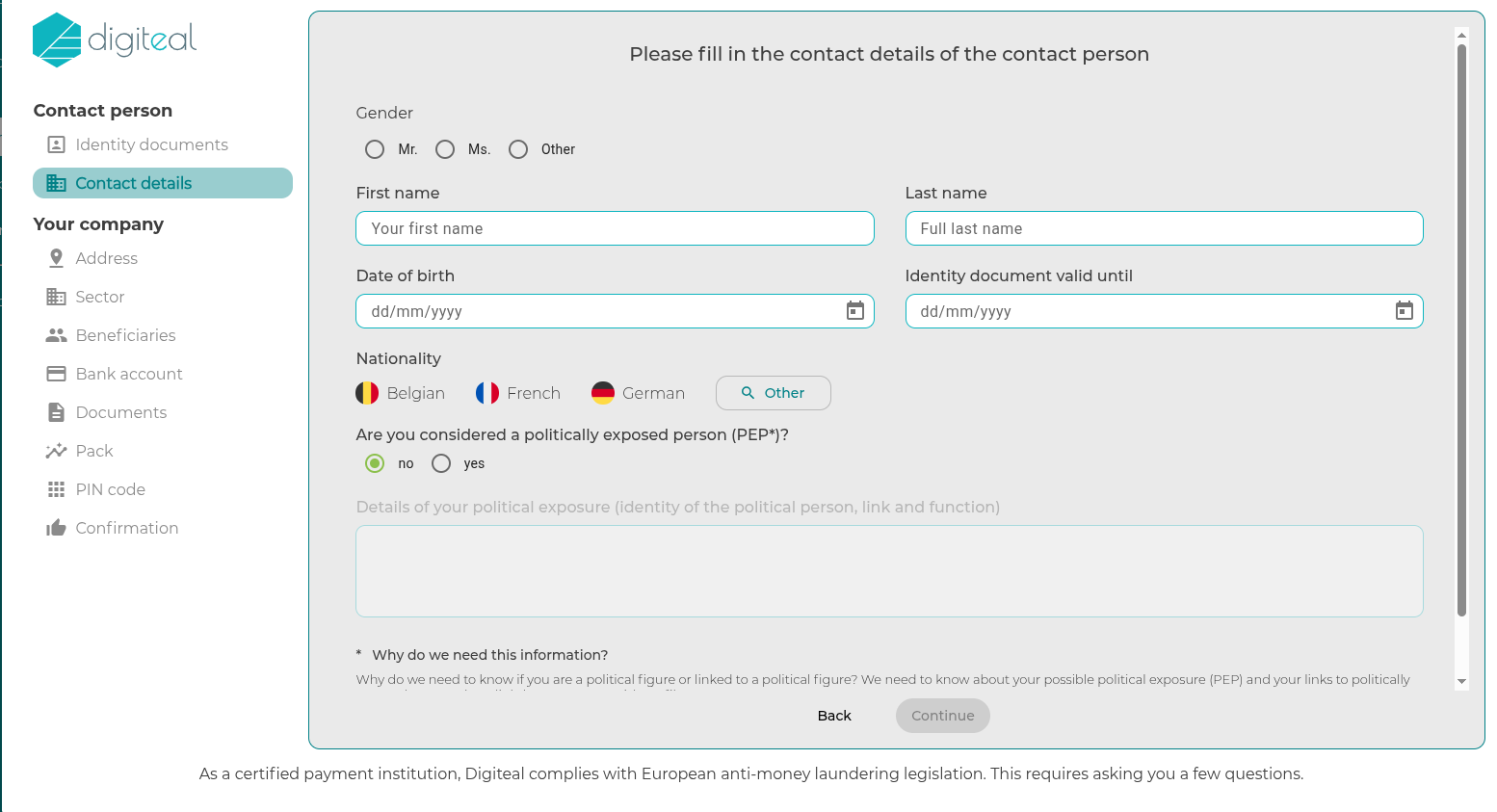
- Enter your details (as the responsible person or mandated by power of attorney).
- Notion "PEP" : Politically Exposed Person
- Click "Continue".
- Note: In the context of anti-fraud efforts, this information may lead to an elevated risk profile.
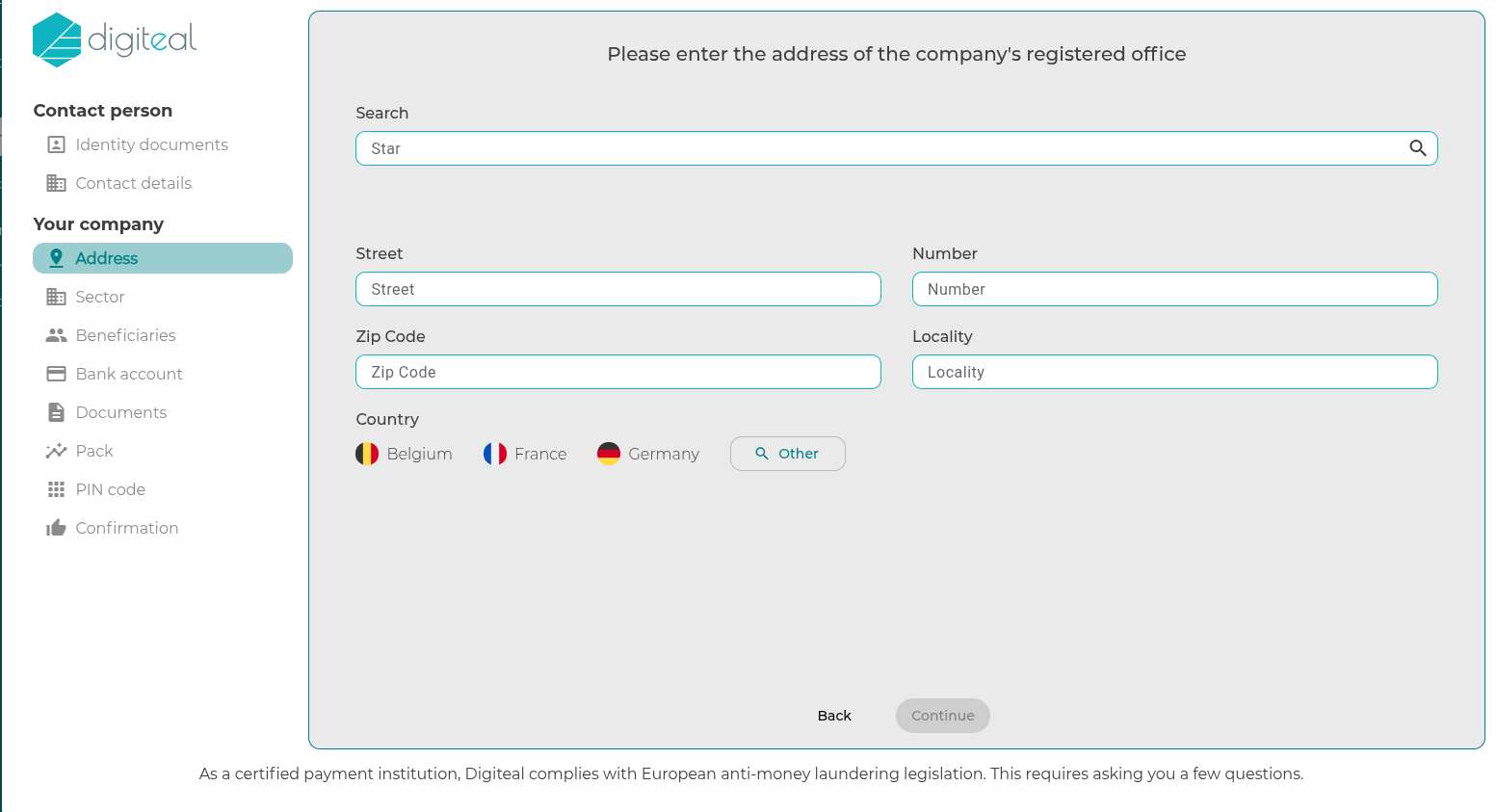
- Enter the address of the company's registered office.
- Click "Continue".
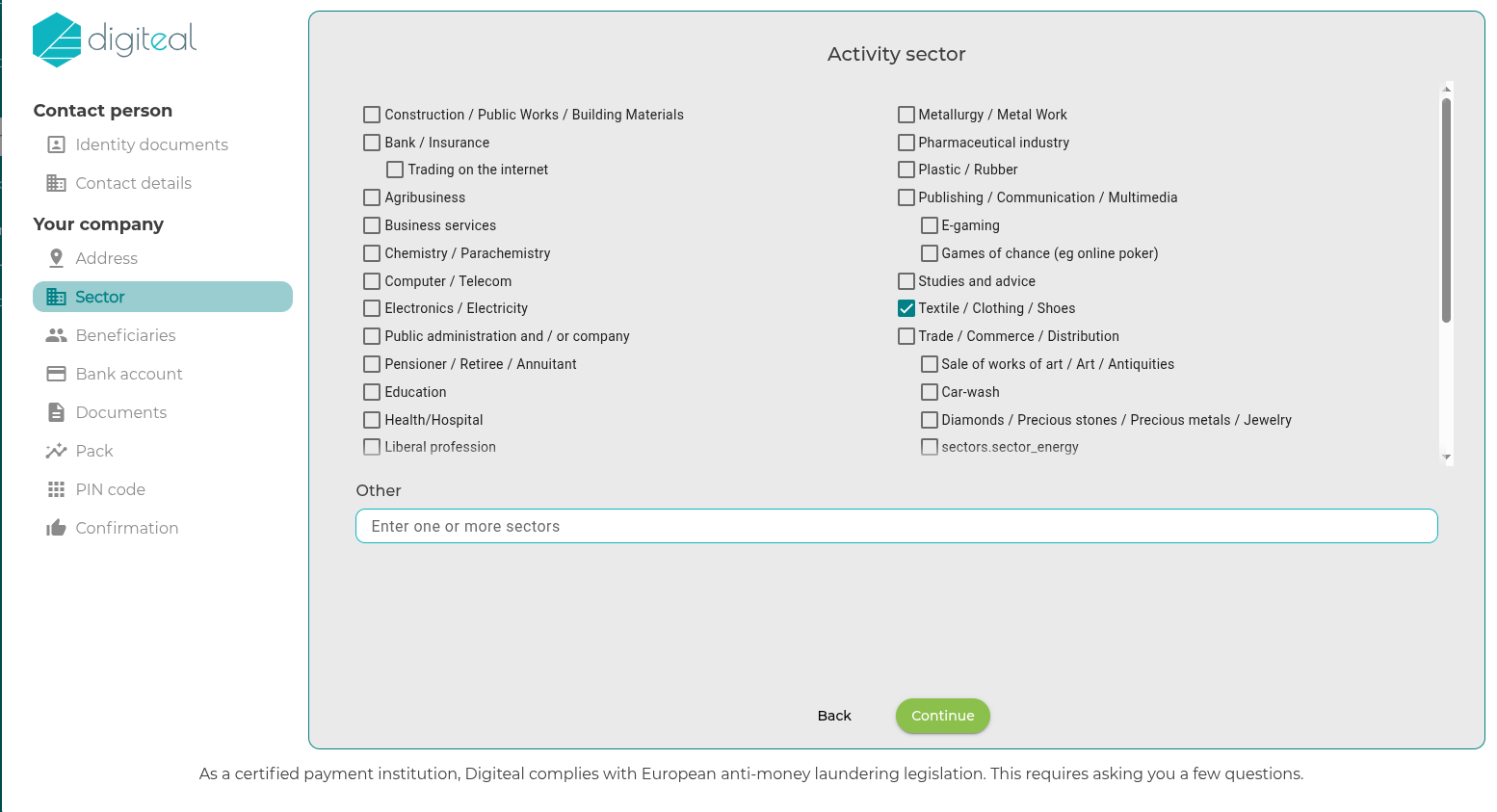
- Choose your activity sector. If "Other", please specify.
- Click "Continue".
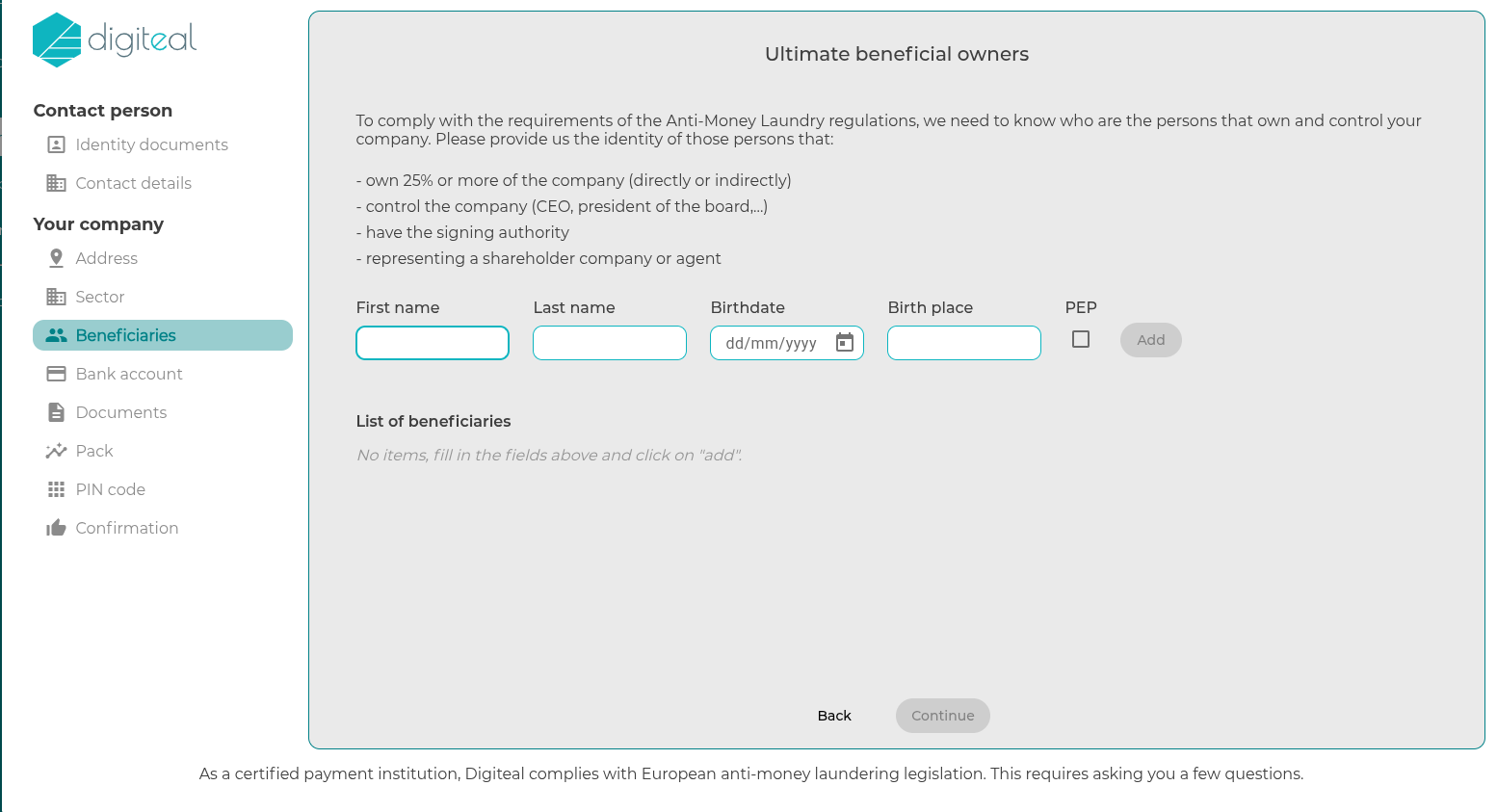
- Add the ultimate beneficial owners (UBOs), especially individuals holding at least 25% of the company's shares.
- Notion "PEP": Politically Exposed Person
- Click "Continue".
- Note: In the context of anti-fraud efforts, this information may lead to an elevated risk profile.
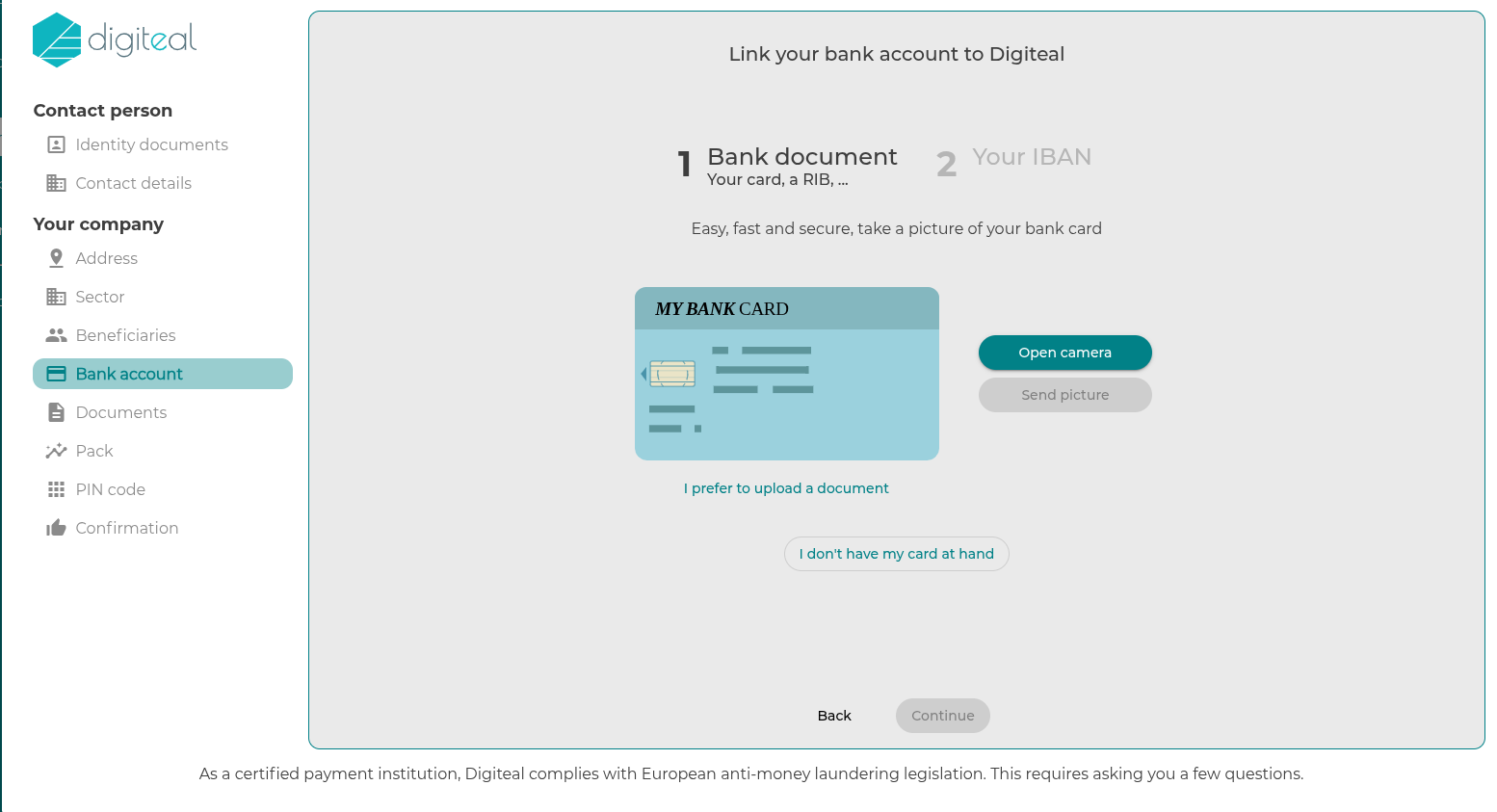
- Tip: Select "I prefer to upload a document" to simplify the validation procedure for your bank account. You can send a bank statement less than 3 months old, on which your establishment's name and IBAN (or RIB for French accounts) are displayed.
- Click "Continue".
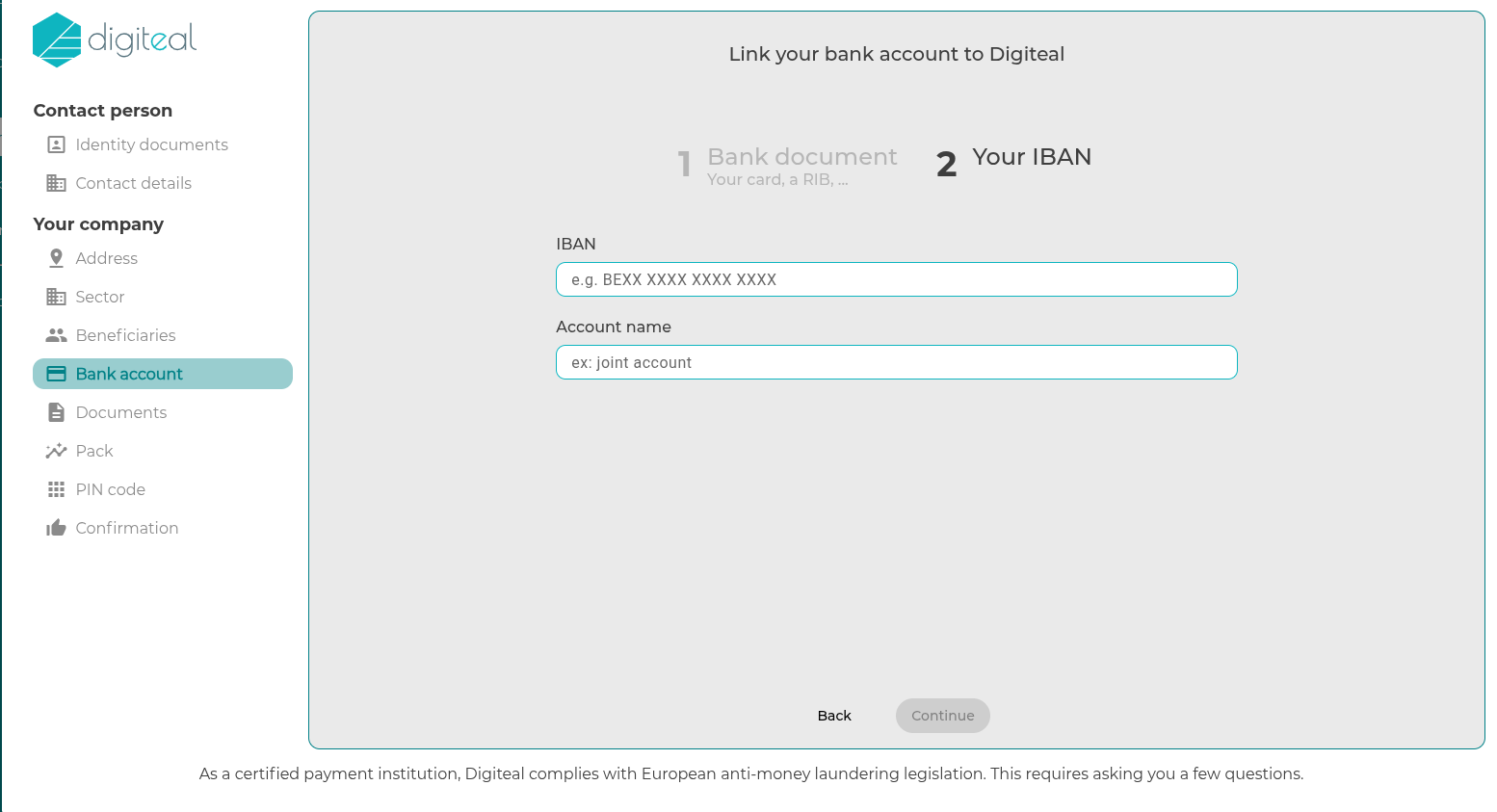
- Enter the default bank account for the establishment, the account where you want to receive payments.
- Tip: Additional bank accounts can be added in "Profile" after completing this initial process.
- Click "Continue".
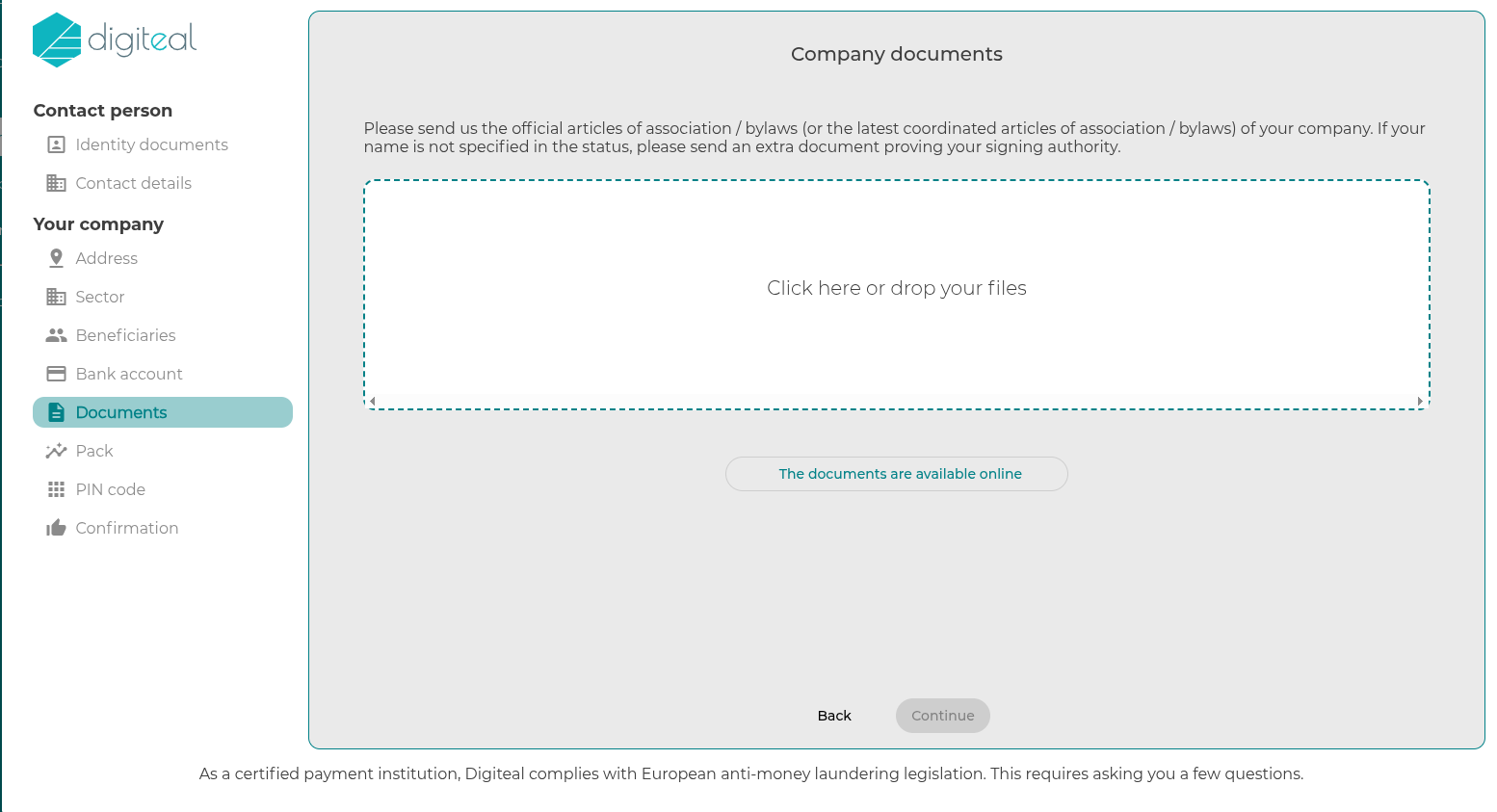
- Upload the establishment's statutes. If they are available online, click "The documents are available online".
- If you have signing authority or have received a power of attorney to create this Digiteal account on behalf of another person, please also provide the appropriate document at this step.
- Click "Continue".
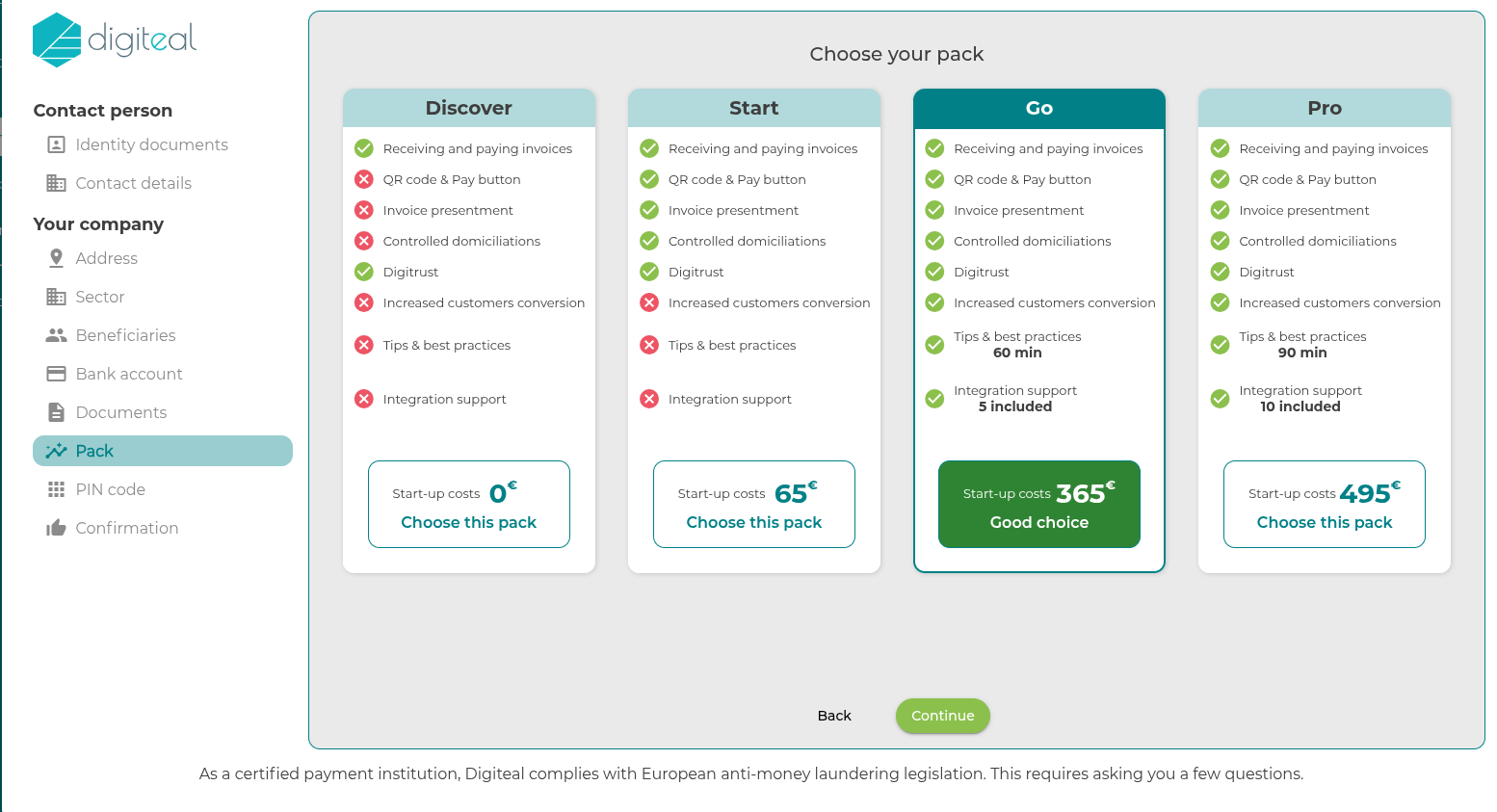
- Choose the pack as agreed with Digiteal.
- If you cannot find the agreed pack (generally "GO"), please select the "Start" pack, it will be updated according to your commercial agreement.
- Tip: To be able to send invoices with QR codes, payment buttons, etc., you need at least the "Start" pack.
- Click "Continue".
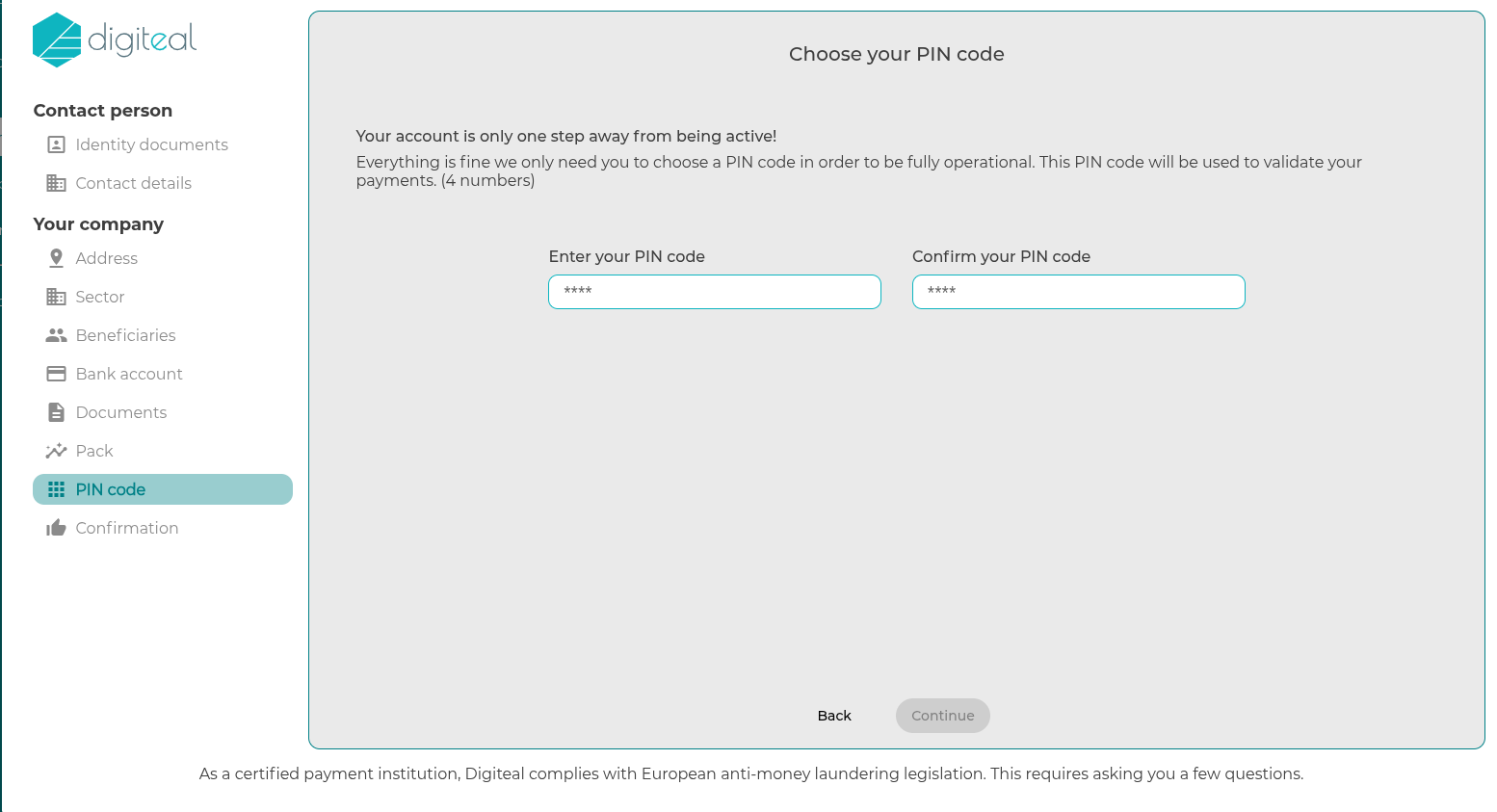
- Choose the PIN code you will use to confirm all important operations in the Digiteal user portal.
- Example: adding an IBAN, initiating a refund, etc.
- Click "Continue".
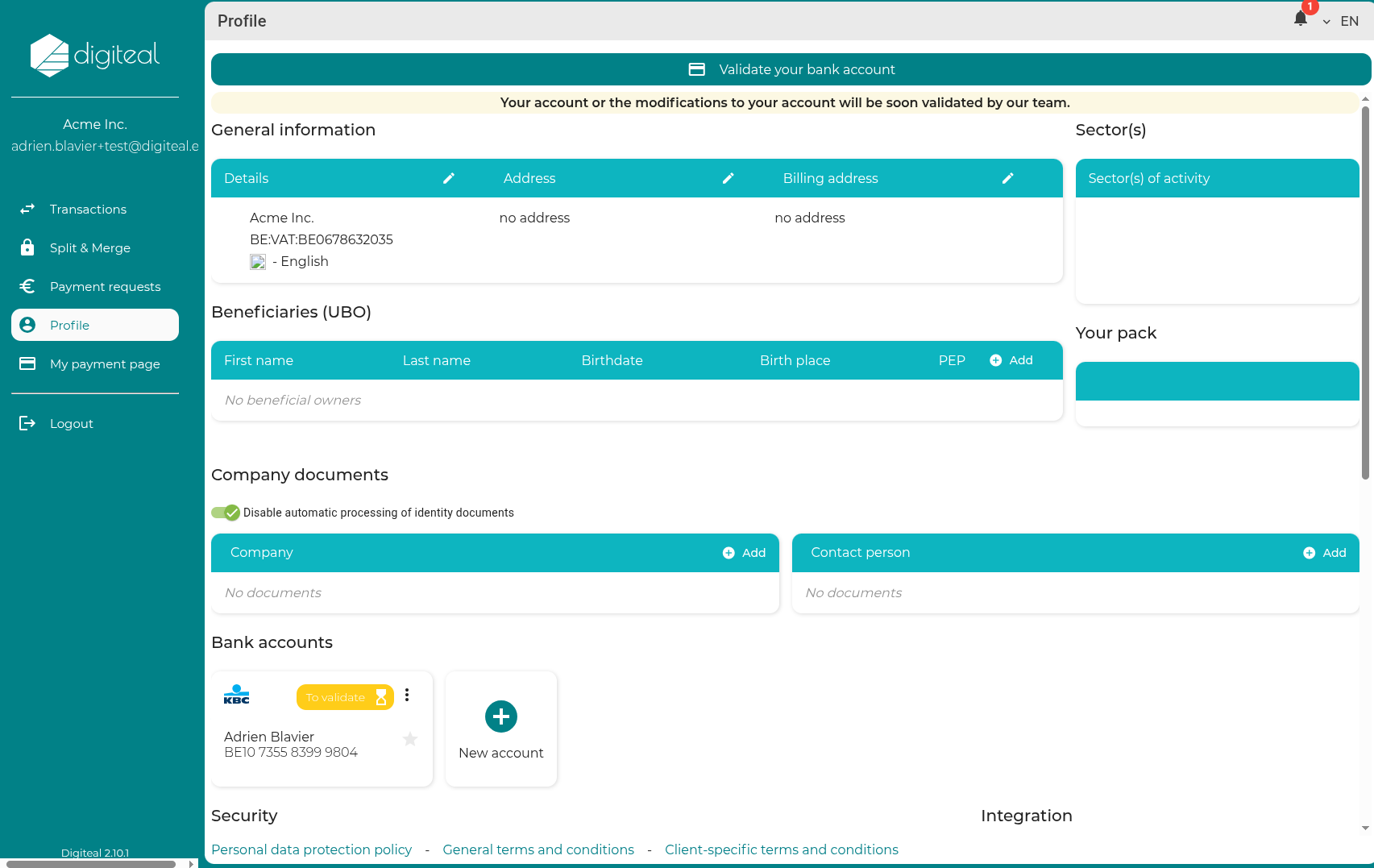
- From this moment, the Digiteal team is responsible for verifying the data provided during your registration.
- If you have not provided a bank statement to simplify the validation of your bank account, a transfer of 0.01€ including a verification code will be sent to the bank account you provided in the next few days. You will need to enter this code in the Digiteal environment (see Profile).
- In case you wish to verify all the data provided during registration (or add missing documents), you can do this in the "Profile" section
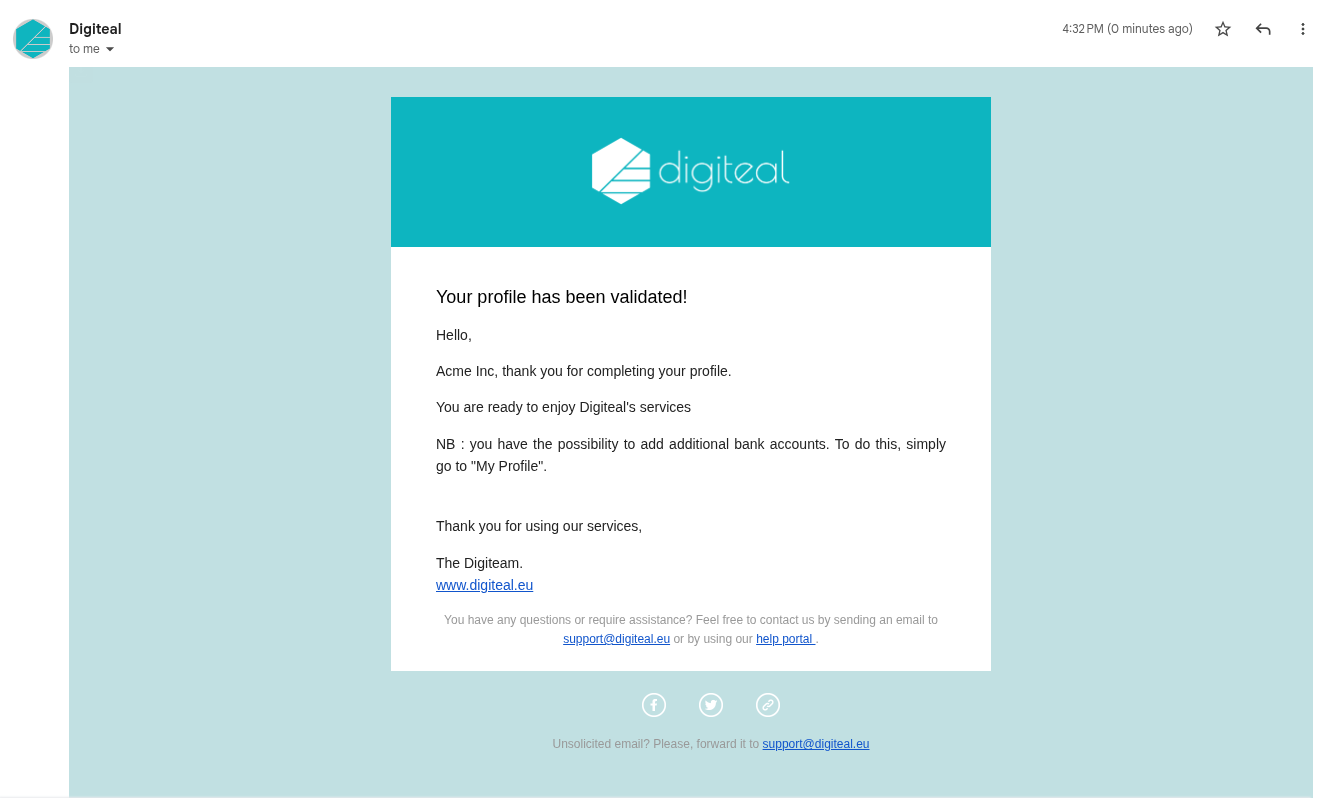
- Once the documents are verified by Digiteal's "Compliance" department, you will receive an email from Digiteal to confirm that everything is in order.
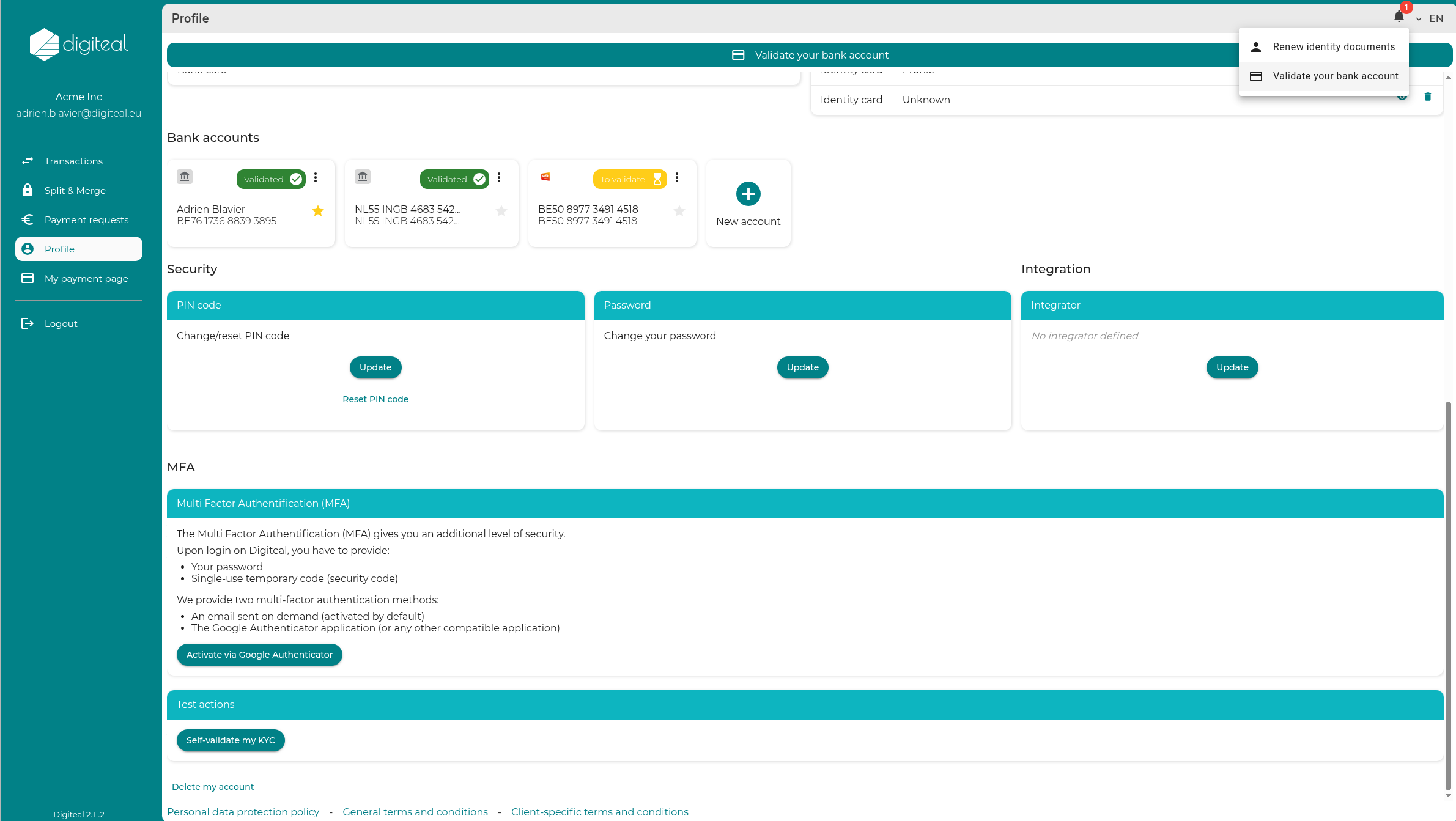
- If you need to validate your bank account (if you did not provide proof during on-boarding), click on the little bell in the op right and click "Validate your bank account".
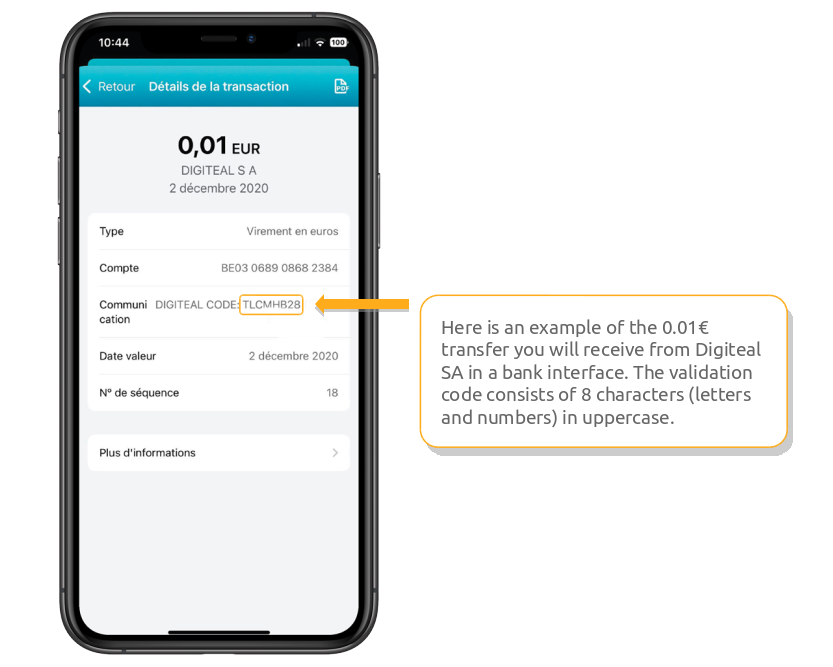
- Two days later, you will be able to connect to your bank interface to consult your bank movements.
- Tip: This step is not necessary if a bank statement was provided (see previous steps).
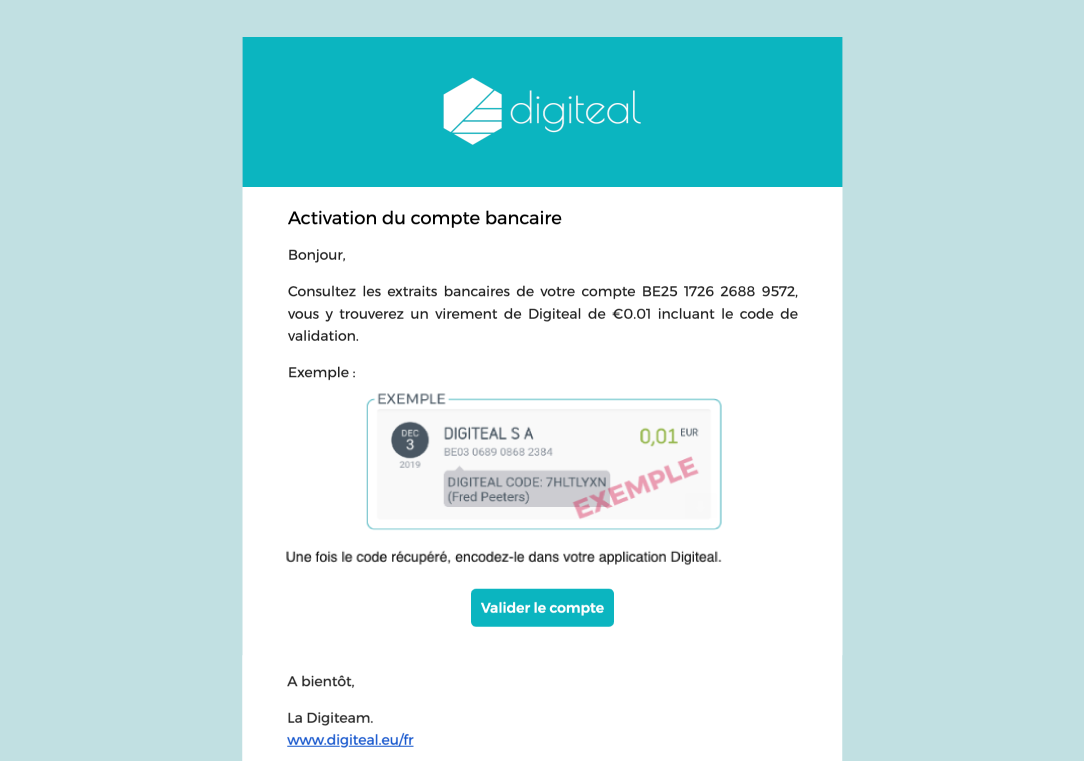
- If you forget to check your bank statements, Digiteal will send you a reminder email 3 days after registration. Once you have the verification code, simply click on "Valider le compte".
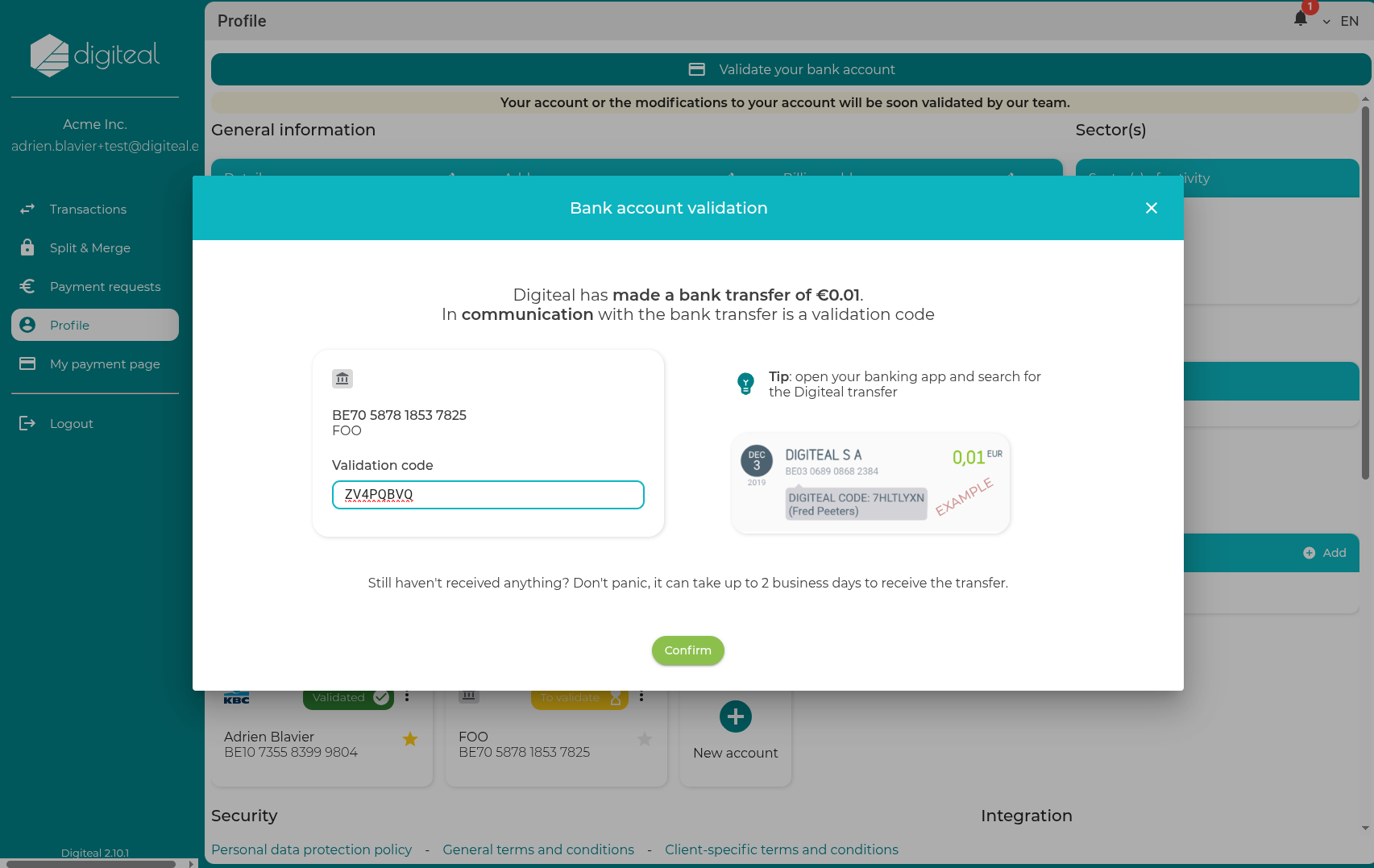
- Enter the validation code you received with the 0.01€ transfer from Digiteal and click "Confirm".
- Remark: If you have registered multiple bank accounts, make sure to provide the verification code for the bank account concerned.
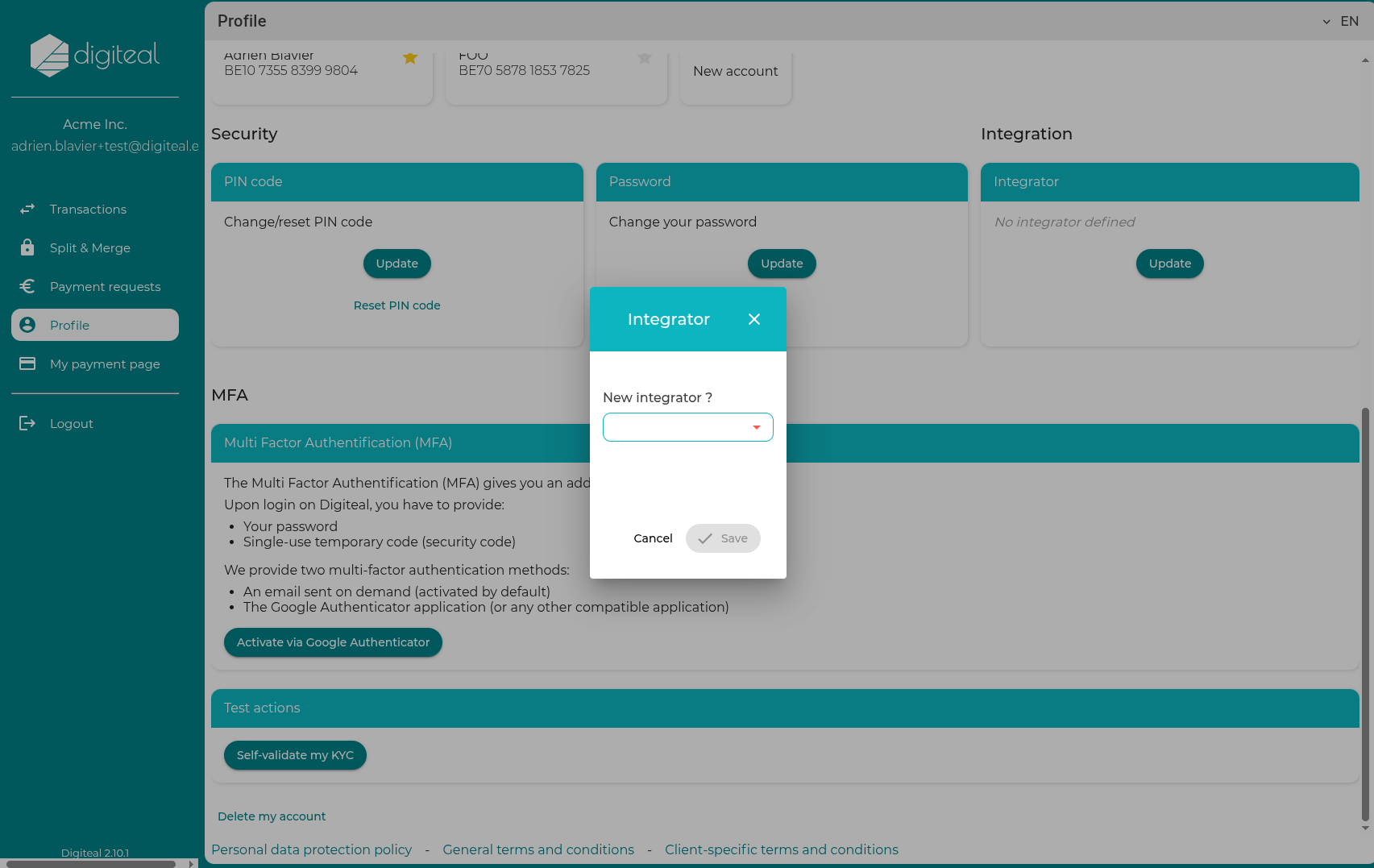
- If you are activating the Digiteal services to use them through an external third party (f.e. billing software or a Document Service Provider), you can navigate to the "Integrator" card and select the correct integrator.
Updated 5 months ago
Did this page help you?